


This article walks you through the full setup for sending co-branded SMS and email through Attentive — enabling the Shopify Flow templates that sync creator data, creating segments from those events, and building journeys that branch on each customer's creator context.
What you'll need
- An Attentive account with Custom Attributes and Custom Events API access
- CreatorCommerce installed on your Shopify store
- The Shopify Flow app installed (it's free)
- Admin access in Attentive so you can enable apps, create segments, and build journeys
Step 1: Create a custom CreatorCommerce app in Attentive
There is no prebuilt CreatorCommerce listing in the Attentive Marketplace, so you need to create a custom (private) app yourself. This custom app is what issues the API key the Shopify Flow workflows will use to push creator data into Attentive.
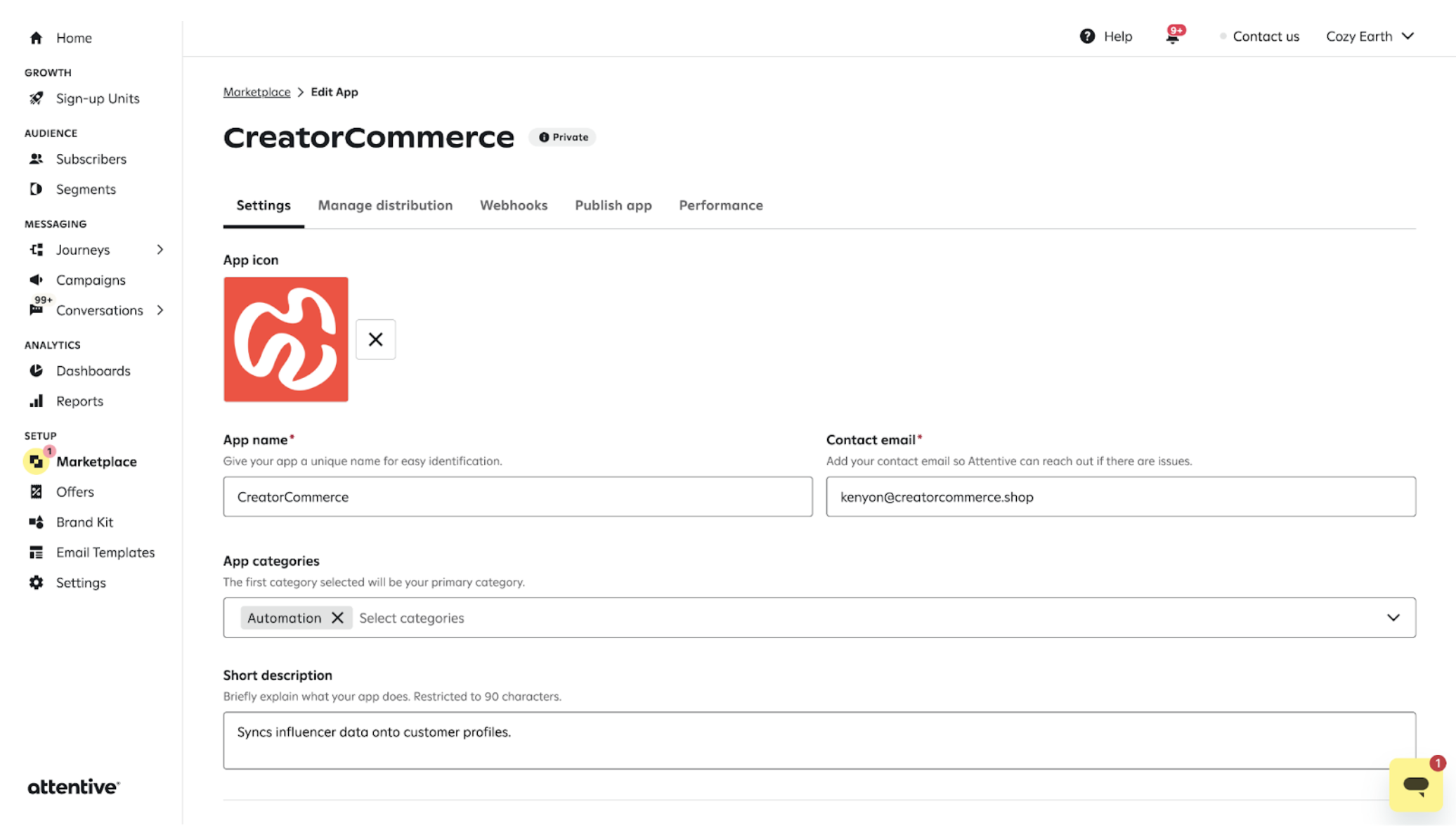
- In Attentive, go to Marketplace and click into the section for building your own app (under Edit App for a private app on your account).
- Name the app CreatorCommerce, set the Contact email, pick Automation as the primary category, and add a short description (for example: Syncs influencer data onto customer profiles).
- On the app's Manage distribution / credentials screen, generate an API key with access to Custom Attributes (
POST /v1/attributes/custom) and Custom Events (POST /v1/events/custom). - Copy the API key — you'll paste it into the
Authorization: Bearer <key>header on the HTTP requests inside the three Shopify Flow templates in Step 2. - Save the app.
Treat the API key like a password. Store it somewhere safe (a password manager or your Shopify Flow secrets) — anyone with this key can write custom attributes and events against your Attentive account.
Step 2: Turn on the three Shopify Flow templates
These three Shopify Flow workflows listen for customer events on your store and push the matching creator context into Attentive. You need all three enabled before segments or journeys will have anything to branch on.
Download each .flow file, import it into the Shopify Flow app, and toggle the workflow on:
- Cart Abandonment — fires when a customer abandons a cart that originated from a creator's link. Download the Cart Abandonment flow
- Post-purchase — fires when a customer completes a purchase attributed to a creator. Download the Post-purchase flow
- Marketing Opt-ins — fires when a customer opts into SMS or email marketing from a creator's funnel. Download the Marketing Opt-in flow
To import each one: in your Shopify admin, open the Flow app, click Import, upload the .flow file, review the actions, and turn the workflow on.
Each workflow sends two HTTP requests to Attentive — onePOST /v1/attributes/customto set creator-context custom attributes on the subscriber profile, and onePOST /v1/events/customto log the event you'll segment on. You don't need to edit the workflows — just make sure they're on.
What you'll see in Attentive once data is syncing
Once all three workflows are running, Attentive will start receiving these events on subscriber profiles:
- Creator Checkout Abandoned — from the Cart Abandonment flow
- Creator Attributed Order — from the Post-purchase flow
- Marketing Opt In From Creator — from the Marketing Opt-in flow
And these creator-context custom attributes will start appearing on the subscribers those events fire for:
cc-creator-first-namecc-creator-last-namecc-creator-profile-picturecc-creator-shop-handlecc-creator-shop-titlecc-creator-shop-descriptioncc-creator-shop-theme-primary-colorcc-collab-affiliate-linkcc-collab-affiliate-codecc-collab-discount-codecc-collab-discount-amountcc-collab-discount-type
These are the values you'll reference inside SMS and email copy.
Step 3: Build a segment for each creator event
Segments in Attentive group subscribers by behavior. Build one segment per creator event so each journey can target them independently.
- In Attentive, go to Audience → Segments and click Create segment.
- Under Choose condition, pick A subscriber's activity.
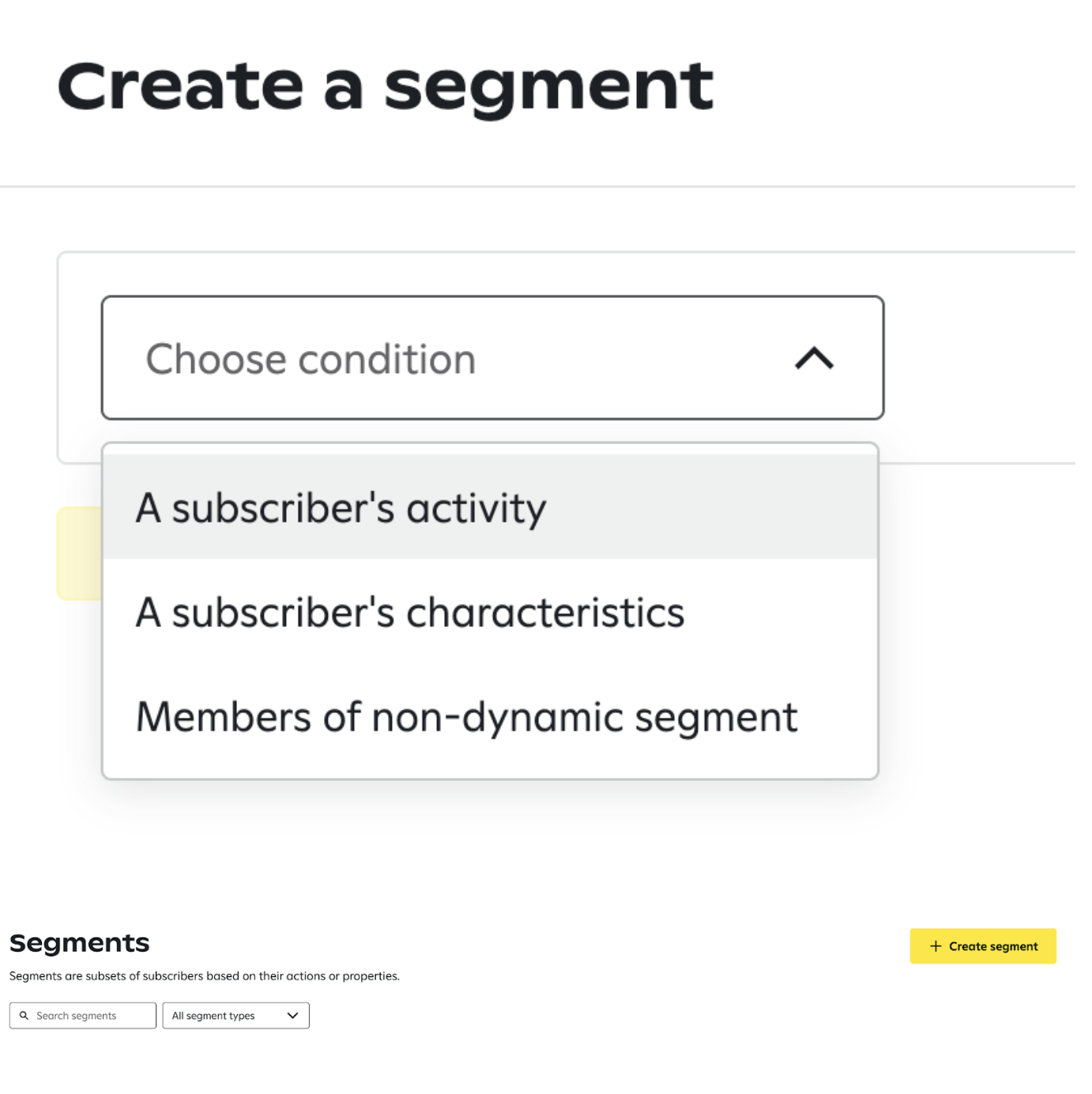
- Set the activity to one of the CreatorCommerce events (for example
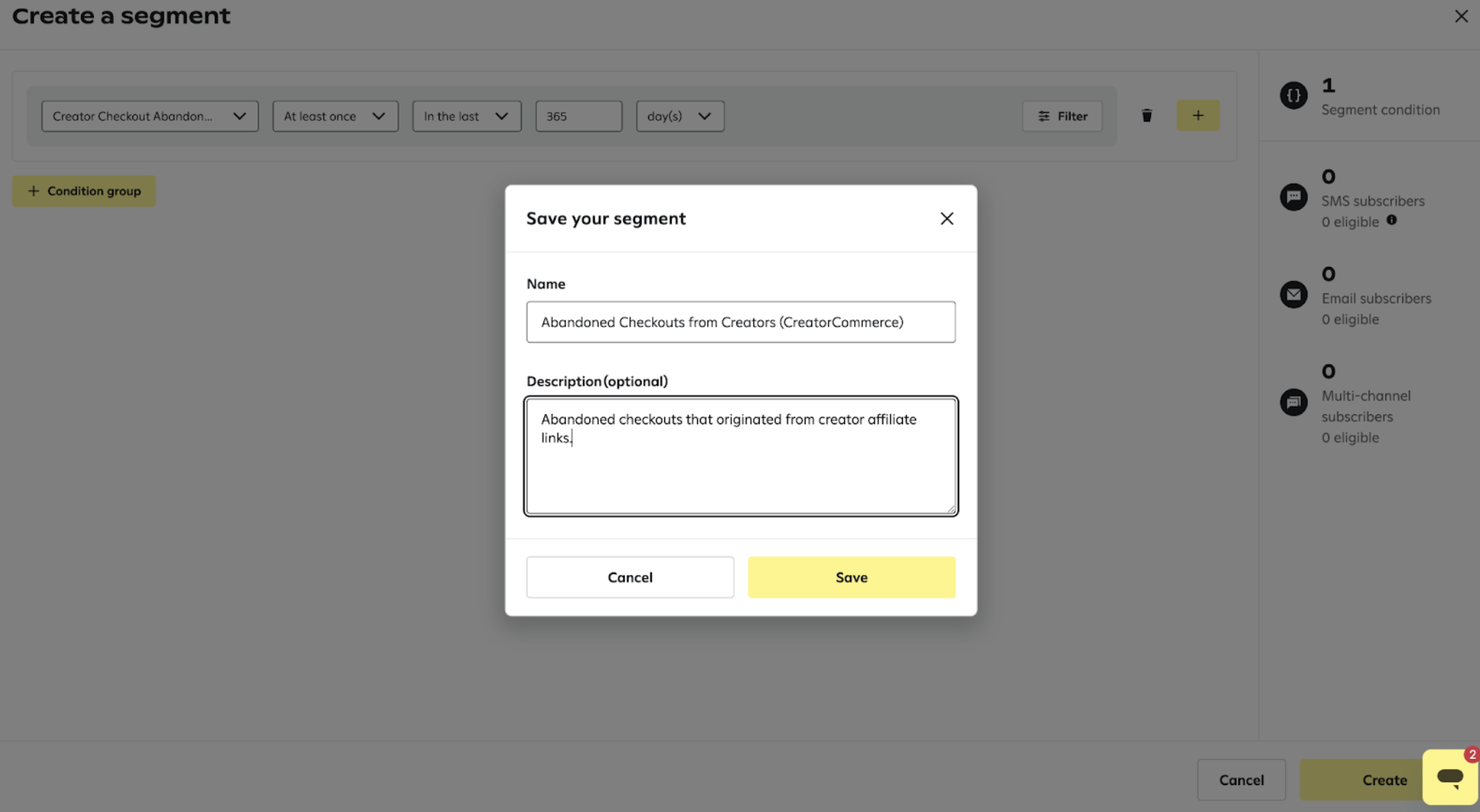
Creator Checkout Abandoned), set At least once, and scope it to In the last 365 day(s). - Click Save, then name the segment something you'll recognize later — like Abandoned Checkouts from Creators (CreatorCommerce) — and Create.
Repeat this three times so you end up with one segment per event:
- Abandoned Checkouts from Creators →
Creator Checkout Abandoned - Orders from Creators →
Creator Attributed Order - Marketing Opt-ins from Creators →
Marketing Opt In From Creator
Step 4: Enroll subscribers into journeys and branch on creator context
Now you can build journeys that split based on whether a subscriber came from a creator, and inject creator-specific content where it matters.
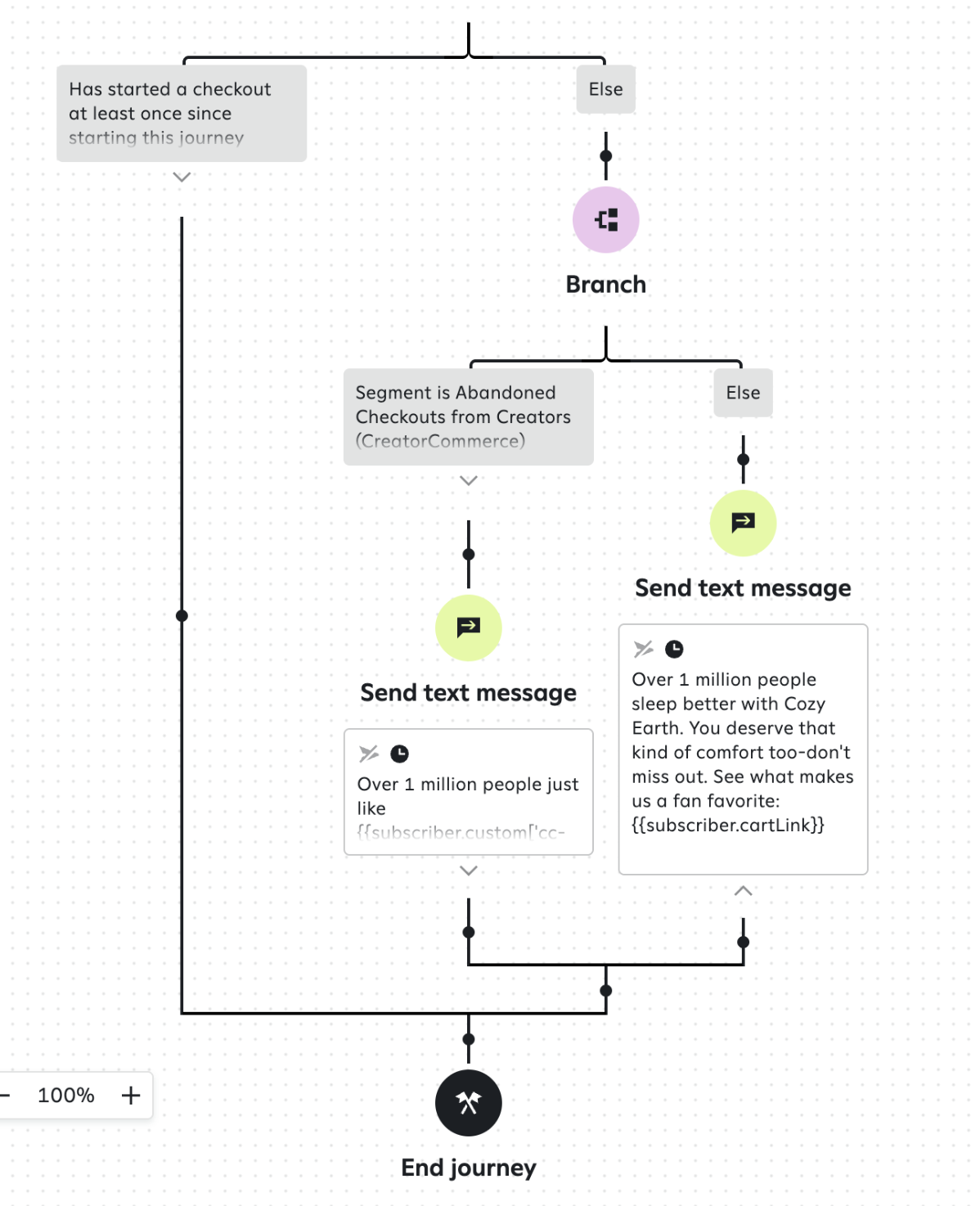
A common pattern: take your existing cart abandonment journey and add a branch before the send step that checks whether the subscriber is in your Abandoned Checkouts from Creators segment. If yes, send the co-branded variant. If no, send your default copy.

Each branch node in Attentive can split on three things — stack them however you need:
- Segments — like the creator segments you just built
- Custom fields — check whether a specific attribute (for example
cc-collab-discount-code) is present on the subscriber - Events — whether the subscriber has triggered a specific event since the journey started
Pull creator data into your SMS and email copy
Inside any Attentive message, reference creator fields off the subscriber profile with the custom-attribute token:
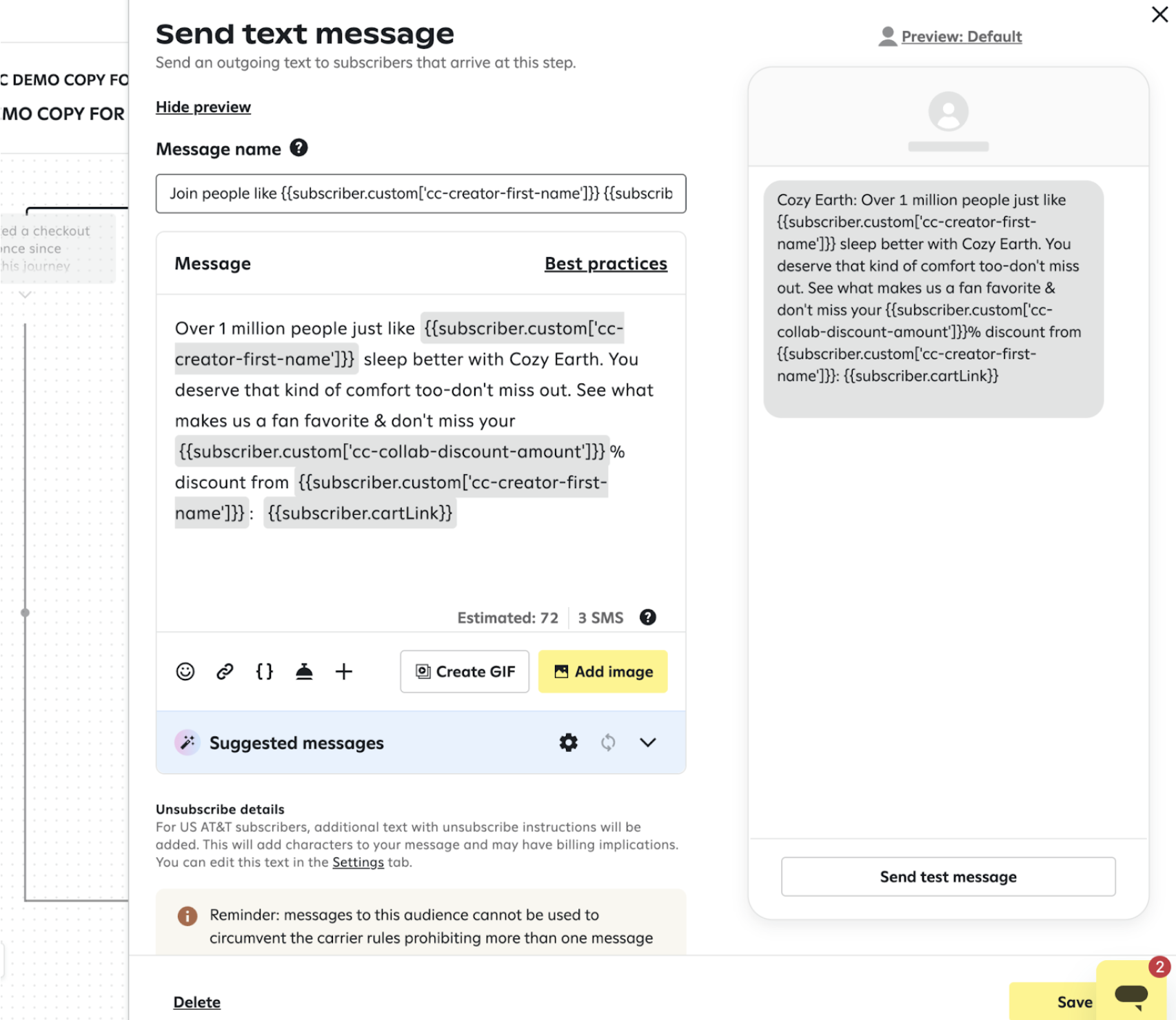
{{subscriber.custom['cc-creator-first-name']}}{{subscriber.custom['cc-collab-discount-code']}}{{subscriber.custom['cc-collab-discount-amount']}}{{subscriber.custom['cc-creator-shop-handle']}}
For example, a co-branded cart recovery SMS might read:
Over 1 million people just like {{subscriber.custom['cc-creator-first-name']}} sleep better with Cozy Earth. You deserve that kind of comfort too — don't miss out. See what makes us a fan favorite: {{subscriber.cartLink}}
Troubleshooting
Events aren't showing up in Attentive
- Confirm all three Shopify Flow workflows are turned on — imports come in disabled by default.
- Open the run history for each workflow. If a run failed at an HTTP request step, the error message will tell you whether it was a missing Attentive API credential or a malformed payload.
- Events only fire for customers whose session had a creator association. If you're testing without going through a creator link, the workflow exits early — that's expected.
Custom attributes are blank inside my SMS
- Open the subscriber's profile in Attentive and confirm the
cc-*attribute actually has a value. If it's blank, the Flow run that sets the attribute didn't execute for that customer. - Double-check your token syntax — it must be
{{subscriber.custom['cc-creator-first-name']}}with single quotes around the field name.
My journey sends the same message to every subscriber
- The branch condition probably isn't matching. Open the journey, click the branch node, and confirm the segment name is exactly what you named it in Step 3.
- Segments are evaluated at the moment the subscriber hits the branch. If the Flow event fires after the subscriber is already past the branch, they won't be routed to the co-branded variant.
You're live
With the three Shopify Flow workflows on, segments built for each creator event, and journeys branching on creator context, every cart abandonment, post-purchase, and opt-in flow that originates from a creator will render with that creator's first name, discount, and shop context baked in.


%201.png)
%201.png)
