

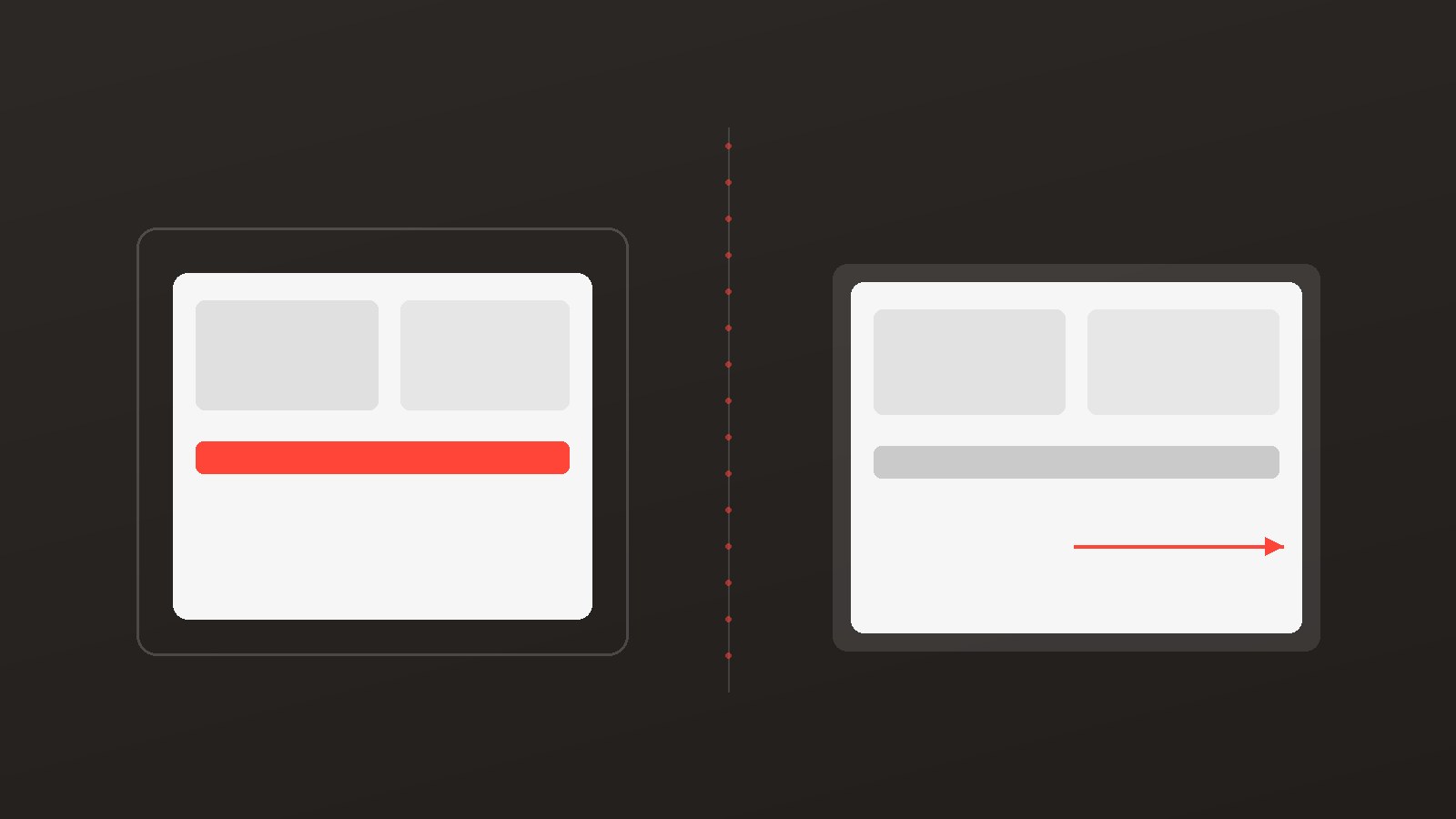
Most brands running creator or affiliate programs on Shopify have the same problem: their creators share links, traffic arrives, and then the conversion happens, or more often doesn't, on a generic homepage or product page that has nothing to do with the creator who drove the click.
CreatorCommerce fixes that by giving every creator a co-branded storefront that lives inside your Shopify theme. Setup doesn't require a developer. You can go from installation to live storefronts in a matter of days.
This guide walks through exactly how to do it.
What You'll Accomplish
By the end of this setup, you'll have:
- CreatorCommerce installed and connected to your Shopify store
- At least one fully co-branded creator storefront live inside your theme
- Creator tracking links pointed to their new on-theme storefronts
- A baseline to measure conversion impact
Who this is for: E-commerce or affiliate managers at Shopify brands who already have a creator or influencer program running and want to upgrade the landing page experience. No development experience required for standard setups.
Before You Start
A few things to have ready:
- Admin access to your Shopify store
- Your existing affiliate platform credentials (Superfiliate, Refersion, Impact, etc.), you'll need these to update tracking links in Step 5
- A list of your top 10-20 creators to prioritize for storefront creation
- Brand assets: logo files, brand colors, any creator-specific imagery you want to use
Step 1: Install CreatorCommerce from the Shopify App Store
Search for CreatorCommerce in the Shopify App Store and install the app. The installation process grants CreatorCommerce the permissions it needs to read your theme, product catalog, and existing customer data.
Once installed, you'll be prompted to connect your store and complete initial brand configuration: logo, colors, and default layout preferences. This takes roughly 15-20 minutes.
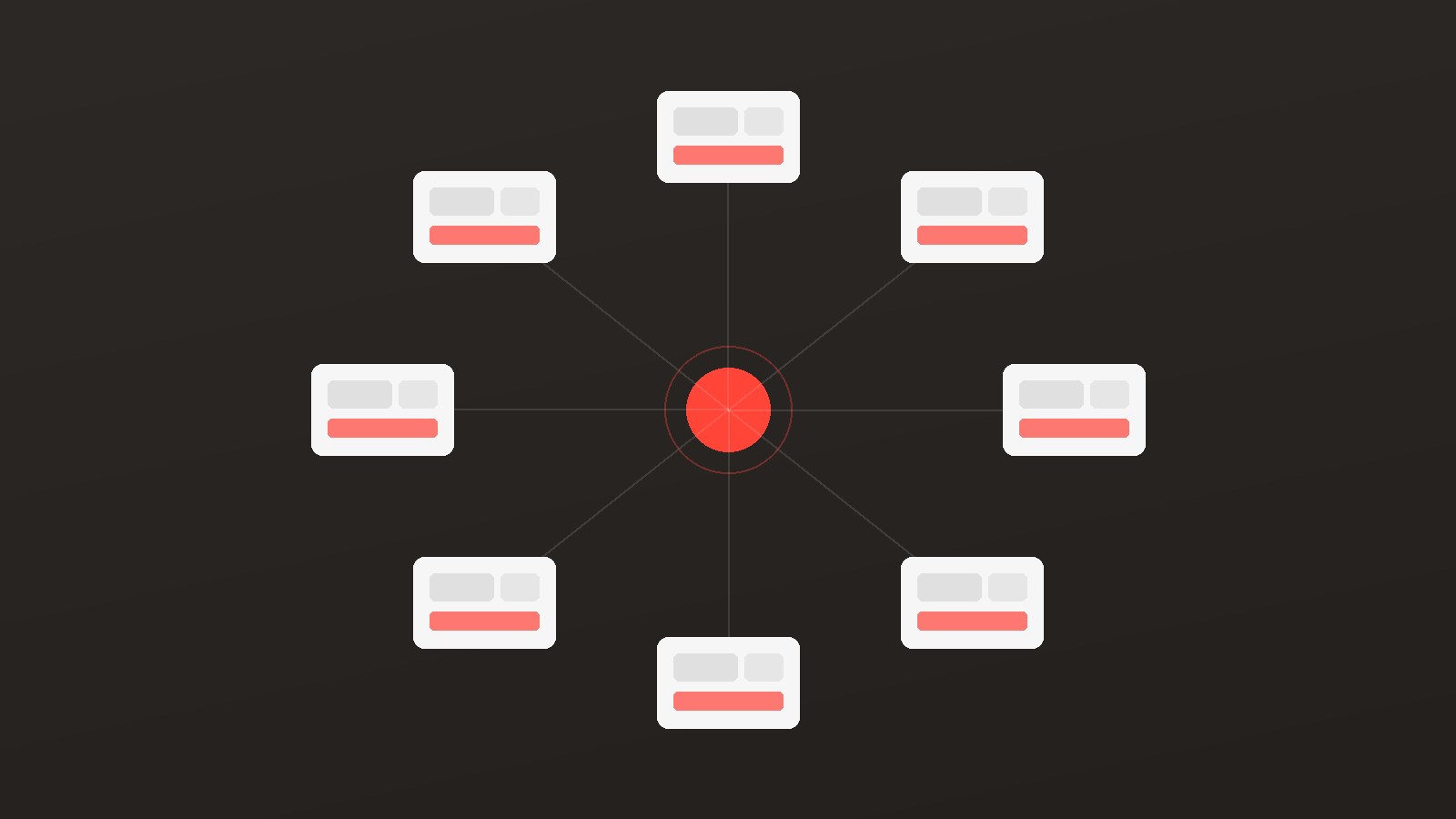
What CreatorCommerce does at this stage: It maps your Shopify theme's structure so that any storefront it generates inherits your theme's header, footer, fonts, and cart behavior automatically. You're not building a separate site; you're adding a personalization layer to the site you already have.
Step 2: Configure Your Default Storefront Template
Before building individual creator storefronts, set your default template. This is the base layout that every creator storefront will inherit. You'll customize per creator later.
In the CreatorCommerce dashboard, configure:
- Layout: Choose how creator identity elements (photo, bio, personal picks) are positioned relative to your product grid
- Product display: Default sorting, grid vs. list, number of products shown above the fold
- Creator CMS permissions: Decide whether creators can edit their own storefronts, or whether your team manages everything centrally
- Discount handling: If creators have associated discount codes or offers, configure how these display and apply automatically
Step 3: Build Your First Creator Storefronts
Start with your top 5 performing creators, the ones driving the most traffic or revenue in your current affiliate program. These are your proof-of-concept and your before/after comparison group.
Creator Identity
- Name and handle
- Profile photo or headshot
- Short bio (can be pulled from their Instagram or written by your team)
- Any brand-partnership specific messaging
Product Curation
Select the products most aligned with the creator's content and audience. A fitness influencer promoting a wellness brand shouldn't land on a page defaulting to your full 400-product catalog. Their storefront should lead with the 8-12 products they'd actually recommend.
Creators can curate their own selections if you've enabled CMS access, or your team can build these pages based on past performance data.
URL Structure
CreatorCommerce generates storefront URLs inside your Shopify domain. A typical structure looks like: yourstore.com/pages/[creator-handle]
You can also configure custom subdomains ([creator].yourstore.com) for top-tier partnerships where additional brand separation and URL trust matter.
Custom PDP Overlay
If you have custom product detail page features (subscription toggles, bundle builders, size guides, review widgets) render natively on CreatorCommerce storefronts because the storefront runs inside your Shopify theme. No additional configuration is required.
Step 4: QA Before Going Live
Before updating any tracking links, QA each storefront thoroughly:
- Does the page look identical to your standard store on desktop and mobile?
- Does your sticky cart appear and function correctly?
- Do upsell apps and loyalty widgets fire normally?
- Do custom PDP features render on the product pages linked from the storefront?
- If you have Shopify Markets enabled, does the storefront correctly display localized currency and language for international visitors?
- Does the creator's discount or offer apply automatically at cart?
- Does clicking through to checkout proceed via your standard Shopify checkout?
The Shopify Markets check is particularly important for brands with international audiences. Because CreatorCommerce storefronts live inside your Shopify theme, they inherit your Markets configuration automatically, but it's worth confirming during QA with a VPN or geo-testing tool.
Step 5: Update Tracking Links in Your Affiliate Platform
This is the step that activates everything. In your affiliate platform (Superfiliate, Refersion, Impact, or whichever you use), update each creator's tracking link destination to their new CreatorCommerce storefront URL.
How this works with Superfiliate specifically:
In Superfiliate's dashboard, navigate to each creator's profile and update the landing page URL to their CreatorCommerce storefront. Superfiliate's attribution still fires on the click: the cookie is set, the commission is tracked, payouts work as normal. The only thing that changes is what the customer sees after clicking.
For other affiliate platforms:
The same principle applies. You're changing the destination URL, not the tracking mechanism. Most platforms allow bulk URL updates if you're switching a large creator roster at once.
What not to change: Don't alter the tracking parameters or UTM structure appended to the link. CreatorCommerce storefronts pass these through to Shopify natively, so your attribution data in both platforms stays intact.
Step 6: Set Your Baseline and Monitor
With tracking links live, you now have a clean experiment running. Pull conversion data from your affiliate platform for the two weeks prior to the switch (your baseline) and track the same metrics for the following two weeks.
The metrics to watch:
- Conversion rate: clicks to purchases from creator links
- Average order value: does curated product selection lift basket size?
- Bounce rate: are customers staying on-page longer?
- Session depth: are they clicking through to more products?
Most brands see meaningful CVR lift within the first creator cycle. Cozy Earth, for example, saw a 214% average CVR increase and a 67.37% AOV increase after migrating 600+ creator storefronts to CreatorCommerce from standard affiliate links.
Pro Tips
Start with your highest-traffic creators, not your highest-follower ones. Follower count and link traffic don't always correlate. Look at who's actually driving clicks in your affiliate platform today.
Let creators personalize if your program supports it. Storefronts where creators have added their own product picks, photos, and commentary consistently outperform brand-managed pages. The authenticity signal is real.
Use the before/after data as a creator recruitment tool. Once you have CVR numbers from on-theme storefronts, you have a concrete pitch for prospective creators: "Here's what your storefront will look like, and here's the conversion data from the first cohort."
Don't wait to build all storefronts before going live. Launch with your top 5, measure, iterate, then scale. Trying to build 100 storefronts before flipping a single tracking link is the fastest way to delay results.
Related Articles
- A new era for CreatorCommerce: Self-serve, custom forms, and a Shopify-native dashboard built for scale
- Announcing support for Shopify Checkout Blocks
- Showcasing CreatorCommerce at Shopify Editions
- Why Shopify brands are turning to CreatorCommerce to maximize influencer ROI
FAQ
Do I need a developer to set up CreatorCommerce on Shopify? No. Standard setup (installation, template configuration, and storefront creation) requires no custom development. If you want a fully headless integration (as Healf did, embedding the CreatorCommerce SDK directly in a custom frontend), that requires developer involvement. But for most Shopify brands using standard themes, it's a no-code setup.
Will CreatorCommerce affect my store's page speed? Storefronts are rendered within your existing Shopify theme rather than loading a separate iframe or external asset, so the performance impact is minimal.
Can I run CreatorCommerce alongside my existing Shopify affiliate app? Yes. CreatorCommerce is a storefront layer, not an affiliate management platform. It works alongside Superfiliate, Refersion, Impact, Social Snowball, or any other affiliate platform: your existing tracking, payouts, and attribution infrastructure stays in place.
What happens to my existing creator landing pages when I set up CreatorCommerce? Nothing changes automatically. Your existing Superfiliate or affiliate-platform-hosted pages stay live until you update the tracking links in Step 5. You control the migration timing and can switch creators over in batches.
Where can I find step-by-step setup documentation?
CreatorCommerce's Help Center has detailed guides for every step. Start with Getting started with landing pages and Getting started with onboarding for the implementation specifics covered in this article.
How long does it take to launch CreatorCommerce storefronts?
CreatorCommerce offers two paths: Funnel A uses pre-built App Block sections and launches in 2-4 hours: functional creator storefronts with no custom development. Funnel B adapts your existing theme sections to read CreatorCommerce metaobject data, which takes 1-2 weeks but produces a perfectly theme-matched experience. Most brands start with Funnel A and graduate to Funnel B as the program scales.
Can creators update their own storefronts after setup? Yes, if you enable CMS access in your CreatorCommerce dashboard. Creators log into their own portal and can update product selections, add content, and customize messaging without touching your Shopify admin.
Ready to get started? Book a Demo →
Related reading


%201.png)
%201.png)
